Layers - AI Photo Editor
- 4.2
- Rating
- 100.00K
- Installs
- Free
- Price

 Analysis by App-foxy
I approached Layers - AI Photo Editor as a practical photography app rather than a replacement for a full desktop editor. Its appeal is easy to understand: it brings retouching, AI-assisted picture work, collage creation, beauty adjustments, and playful hair editing into one mobile workspace. After using it, my impression is that it is best suited to quick visual improvements and creative experiments, especially when I want to finish an image on my phone without moving between several separate tools.
The app is developed by HITDEV AI and is available free of charge, which makes it simple to try before deciding whether its paid options are worthwhile. It belongs to the Photography category, carries an Everyone age rating, and has reached over 100 thousand installs. Its current version is 1.0.5, and the app has an average rating of 4.2 from around 3.4 thousand ratings. Those figures suggest a reasonably positive early reception, although I would still treat it as a relatively young tool rather than a mature editing standard.
How Layers fits into everyday photo editing
I find Layers most useful when a photo needs a few different kinds of attention, not just a filter. In this section, I’ll look at how its portrait edits, collage-making, and creative tools can fit into an ordinary phone-photo routine, and why choosing a clear end result before editing helps keep that routine manageable.
You May Also Like

 Blood Strike: 2.5 Anniversary
Blood Strike’s Loadouts Turn Every Drop Into a Tactical Gamble
A close look at Blood Strike’s custom loadouts: how fast access to signature weapons reshapes its battle royale rhythm, rewards preparation, and narrows the gap between fights.

 Pandora - Music & Podcasts
Pandora’s Music Is Easy to Start, but Harder to Recover
Pandora’s strength is its low-effort path from a seed to a station. Its weak spot is how much confidence it asks you to place in connection, setup, and quiet recovery.

 8 Ball Pool
 Is Built on Rivalries, Rematches, and Routine
A close look at the rivalries, rematches, shared routines, and unanswered safety questions that turn a quick pool match into a persistent mobile community.

 Samsung Music
’s Quiet Strength Is Playing What You Already Own
Its reach comes less from spectacle than from dependable access to a personal library. That simplicity is both the app’s strongest retention engine and its ceiling.

 AccuWeather: Weather Radar
AccuWeather Review: A Quick, Clear Forecast for Everyday Decisions
For everyday plans, the best forecast is the one you can understand quickly. AccuWeather makes rain timing, radar, and local conditions easy to act on, with a few trade-offs.

 Hill Climb Racing
Why Hill Climb Racing Still Turns Crashes Into One More Run
A tiny car, a bumpy hill and one more upgrade: Hill Climb Racing keeps resurfacing because its simple chaos makes every near-miss feel personal.
More From Our News Desk



A useful all-in-one starting point
What makes this app interesting is the combination of ordinary editing and more playful image work. Many photo editors focus on filters, cropping, exposure, and color. Others concentrate on beauty retouching or collage templates. Layers tries to place these activities beside each other, so I can begin with a normal portrait, make a few corrections, and then turn the same image into a more stylized post.
That approach works well for casual social content. If I have a portrait that needs a cleaner presentation, I do not necessarily want a complicated layer panel, a desktop-style masking workflow, or a long lesson about color curves. I want to improve the image quickly, check the result, and save something that looks intentional. The app’s focus on easy retouching and AI picture tools is clearly aimed at that kind of session.
The name “Layers” also points toward a useful way of thinking about the editor. Rather than treating a photo as a finished object, I can approach it as a base for several visual decisions: a subject adjustment, a decorative element, a collage arrangement, or a beauty edit. Even when I am working casually, that separation can help me avoid applying every effect at once and losing track of what changed.
What the free entry point means
The free download is a genuine advantage for anyone comparing photography apps. I can explore the basic experience without committing money at the start, which is particularly important for an editor whose usefulness depends on personal taste. Some people will enjoy AI-assisted changes and playful hair effects; others will prefer a restrained editor with manual controls. A free starting point lets that decision happen through use rather than guesswork.
There are in-app purchases ranging from $5.99 to $39.99 per item. I would therefore separate “free to install” from “everything is free.” The app can be approached without an initial payment, but anyone considering a purchase should inspect what each item unlocks at the moment of buying. The price range is wide enough that a casual user should avoid assuming every feature or asset has the same cost.
That distinction matters because the value of a photo editor is not simply its number of tools. If I only need occasional cropping, a quick collage, or a small portrait touch-up, the free access may be enough. If I plan to use it repeatedly for polished social images, the paid value depends on whether the particular tools I use most often are included in the purchase I am considering. I would make that decision after testing a few real photos, not from the app’s name alone.
Where it feels most useful
My favorite use case is a quick portrait workflow. Imagine taking a group photo at a café, noticing that the lighting is uneven, and wanting a cleaner image before sharing it. I would start with the original photo, make a restrained retouch, test a beauty adjustment, and then compare the result with the untouched version. If the image still feels natural, I might place it into a simple collage with another photo from the same day.
The important word there is restrained. Retouching tools are most convincing when they solve a small distraction instead of changing the person’s appearance completely. I recommend making one adjustment at a time and checking the whole image after each change. A face can look acceptable when viewed closely but artificial once it is seen beside the background, clothing, and other people in the frame.
The collage side is also useful for storytelling rather than merely decoration. I can combine a detail shot, a wider scene, and a portrait to show an event in one image. That is faster than preparing separate posts, and it gives the final result a clearer visual sequence. For this kind of work, an integrated editor is more convenient than switching between a retouching app and a collage maker.
Three workflows that reveal more than the basic description
One practical trick is to keep an untouched copy of the original before trying AI-based changes. AI editing can be appealing because it reduces manual effort, but the strongest-looking result is not always the most believable one. Comparing the edited image with the source helps me notice changes to skin texture, hair edges, facial proportions, or background details that I might otherwise accept too quickly.
A second useful workflow is to edit for the final viewing size rather than judging every detail at maximum zoom. A collage that looks impressive as a large preview may become crowded when seen on a phone screen. I prefer to check whether faces remain clear, whether text or decorative elements compete with the subject, and whether the image still reads quickly. This is especially important when several photos are combined in one frame.
A third trade-off appears when using hair-related effects. They can be fun for experimenting with a new look or creating a playful image, but hair is difficult for any automated editor because loose strands, curls, hats, and overlapping backgrounds create complicated edges. I would use these tools for creative previews or entertainment before relying on them for a serious profile image. The more complex the original hair and background, the more carefully I would inspect the outline.
How it compares with familiar alternatives
Compared with a traditional manual editor, Layers is more approachable for fast portrait work and creative combinations. A manual editor normally gives me greater control over individual adjustments, but that control can slow down a simple task. If I need precise color correction, carefully managed masks, or a highly repeatable professional process, I would still favor a more advanced editing application.
Compared with a dedicated collage app, Layers has the advantage of keeping retouching and composition in one place. That saves time when the photos need improvement before they are arranged. A dedicated collage tool may still be preferable for someone who cares mainly about a large selection of layouts, borders, spacing controls, or presentation details. The better choice depends on whether editing the pictures or arranging them is the central task.
Compared with a beauty-focused editor, this app appears broader in purpose. Its appeal is not limited to smoothing a portrait; it also reaches into AI picture creation, collage work, and hair experimentation. That wider range is useful for casual creators, but it can also mean that a specialist app feels more focused for one narrow job. I would choose Layers when I want variety, not when I already know I need one advanced professional function.
Friction I would consider before using it regularly
The first limitation is the risk of over-editing. Easy retouching encourages experimentation, and the line between enhancement and an artificial result can disappear quickly. I would be particularly cautious with skin adjustments and facial changes. The best result is often the one that preserves texture and expression while removing only the distraction that originally bothered me.
The second limitation is that AI tools can make the editing process feel less predictable than manual controls. A manual slider usually behaves in a direction I understand. An AI-assisted change may produce an attractive result in one image and a less convincing result in another, depending on lighting, pose, background, and image quality. That means I would not build a time-sensitive workflow around a single automatic result without checking it carefully.
The third issue is purchase discipline. Because the app is free to start but includes individual in-app purchases between $5.99 and $39.99, I would not buy an item simply because it looks interesting in a preview. I would first decide how often I edit photos, which tools I actually use, and whether the free experience already covers my needs. Someone who edits only once every few weeks may receive better value by remaining on the free tier.
There is also a difference between fun editing and dependable production work. For a personal collage, a playful hair experiment, or a quick social post, small imperfections may not matter. For a business portrait, product image, or client deliverable, they matter much more. In those situations, I would want a workflow with predictable manual control, easy revision, and careful inspection at full resolution.
Who is likely to get the most value
I think the strongest audience is people who want several approachable photo tools in one app. It suits someone who takes portraits, shares occasional collages, enjoys trying visual changes, and does not want to learn a complicated editing system. It is also a sensible option for a user who is curious about AI-assisted editing but wants to begin without an upfront payment.
It may be especially handy for students, families, and casual creators preparing images for messaging apps or social networks. A single afternoon of photos can become a small collage, a cleaned-up portrait, and a playful alternative version without requiring separate downloads for every task. The value comes from convenience and experimentation rather than from replacing a professional studio workflow.
I would be more cautious about recommending it to photographers who already work with detailed manual adjustments. If your priority is exact color management, carefully controlled retouching, or a consistent process across many images, a more specialized editor is likely a better fit. The same applies to users who dislike AI-driven changes or want every visual result to come directly from a clearly labeled manual control.
Questions worth answering before downloading
Is it genuinely possible to try without paying? Yes, the app is free to download and use as an entry point. However, the presence of in-app purchases means I would check the available options before assuming the entire toolkit is included at no cost. The right expectation is free access for exploration, with paid items available for users who want more.
Is it suitable for children? The content rating is Everyone, so it is positioned for a broad audience. Even so, I would still treat purchases as a separate practical concern on a shared device. A general age rating does not tell me which editing style a particular child will prefer, so supervision around spending and image sharing remains sensible.
Does it replace a professional editor? In my view, no. It is better understood as a convenient mobile photography app for quick retouching, AI-assisted creativity, collages, and beauty or hair experiments. For professional work, I would choose a tool that gives me more predictable control and a stronger revision process.
Will every automatic edit look natural? I would not expect that. Results can depend heavily on the source image, and portrait details are easy to push too far. My advice is to compare every result with the original, zoom in on edges, and reduce the intensity whenever the subject begins to look less like the person in the photograph.
Is paying worthwhile? That depends on frequency and purpose. A regular creator who repeatedly uses a specific paid function may find value in it, while an occasional user may be perfectly satisfied with free access. Since individual purchases span from $5.99 to $39.99, I would evaluate the exact item and my expected usage rather than treating the app as an automatic bargain.
My recommendation after weighing the value
I like the app most as a flexible, low-pressure editing companion. It gives me a reason to experiment because I can move from a simple portrait correction to a collage or a playful hair idea without changing apps. That combination is more useful than a store summary alone suggests, particularly for people who create images casually and value speed over technical depth.
At the same time, I would keep expectations realistic. The free starting point is valuable, but paid options need to be judged individually. AI editing saves time, yet it still needs a human eye. Beauty tools can improve a portrait, yet they can also remove the character that makes the photo feel real. And while the app is broad, breadth is not the same as professional precision.
My buy-or-skip verdict is simple: try it free if you want approachable portrait editing, collages, and playful AI experiments in one place; skip it if you need exact manual control or a dependable professional retouching workflow. For the right user, Layers - AI Photo Editor is a convenient way to turn ordinary phone photos into more polished and more varied images. I would use it selectively, preserve the originals, inspect automatic changes closely, and only consider a purchase after finding a feature I genuinely use often.
FAQs for Layers - AI Photo Editor
01What is Layers - AI Photo Editor used for?
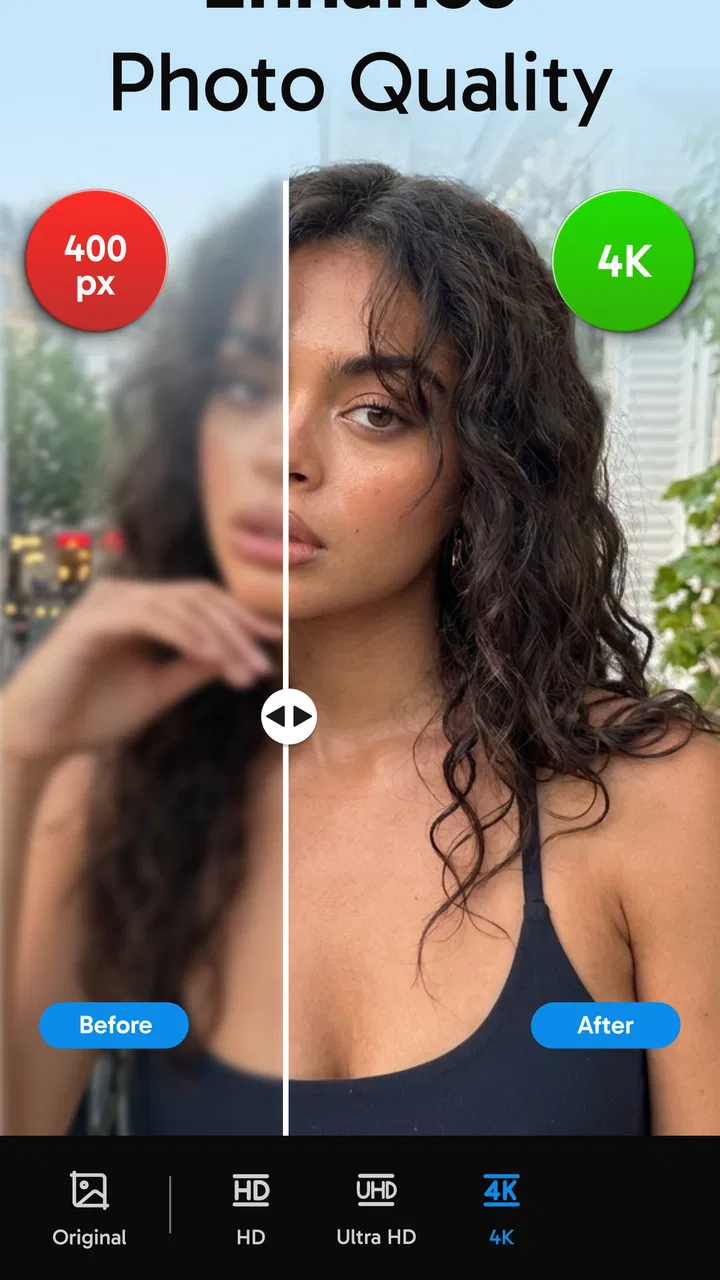
Layers - AI Photo Editor is designed for creating and enhancing images with artificial intelligence. It can help users edit portraits, remove or replace backgrounds, improve image quality, apply creative effects, and generate visual variations from existing photos. It is aimed at both casual users who want quick improvements and creators who need more flexible tools for social media, marketing, or personal projects.
02Is Layers - AI Photo Editor free to download and use?
The application may be available to download at no initial cost, but some advanced editing tools, AI generations, export options, or premium effects can require a subscription or one-time purchase. Free usage may also include limits on credits, resolution, or the number of projects. Before starting a major project, users should check the current pricing, trial conditions, renewal terms, and in-app purchase details shown on their device.
03Do I need an internet connection to use Layers - AI Photo Editor?
Many AI-powered features generally require an active internet connection because photos are processed through online servers rather than entirely on the device. Basic functions may work differently depending on the version and platform, but users should expect connectivity to be necessary for image generation, background changes, advanced enhancements, or cloud-based tools. Upload and processing times can also depend on connection speed.
04Are photos uploaded to Layers - AI Photo Editor private and secure?
Privacy depends on how the application handles uploaded images, generated content, account information, and temporary processing files. Before using personal or sensitive photos, review the app’s privacy policy and permission requests carefully. Users should also avoid uploading confidential images unless they understand the retention and deletion rules, whether content is processed by third-party services, and how data may be used to improve AI features.
05What types of photos work best with Layers - AI Photo Editor?
Layers typically produces better results when the original image is clear, well lit, and has a visible subject with enough separation from the background. Sharp portraits, product photos, and images with simple compositions are usually easier for AI tools to analyze. Low-resolution pictures, heavy blur, extreme shadows, crowded scenes, or partially hidden subjects may lead to less accurate edits and require additional manual adjustments.
Pros
- AI tools make complex edits accessible to beginners.
- Supports creative overlays
- filters
- and image enhancements.
- Useful for creating social media posts and profile pictures.
- Quick editing workflow saves time compared with manual retouching.
- Clean interface makes key features easy to find.
Cons
- Some advanced AI features may require a paid subscription.
- Results can vary depending on image quality and lighting.
- AI edits may occasionally look unnatural or overprocessed.
- Export options may be limited on the free version.
- Processing can take longer for high-resolution photos.

Layers - AI Photo Editor
Gallery